.png?width=120&height=121&name=CustomerHappy_V2%20(4).png)
.jpg)
If you want customers to find you on Google, this is the starting point. When someone searches something like “Plumber near me” or looks up your business name, Google usually shows a shortlist of local options in Search and on Maps. People don’t research for long — they skim what’s there and make a call.
.png?width=2400&height=1256&name=Group%2079%20(1).png)
If you don’t have a Google Business Profile, you typically won’t show up in those local results at all. So even if you do great work, you’re often not in the running at the exact moment someone is ready to choose.
The good news: setting one up isn’t hard. It’s just worth doing properly so it works for you from day one.
This guide is for you if…
-
You don’t have a Google Business Profile yet
-
You have one, but it’s incomplete or unverified
-
You just want to get the basics right without going down the SEO rabbit hole
This guide is focused on getting your profile live and trustworthy. Optimisation can come later.
Why a good Google Business Profile matters
For most local businesses, your Google Business Profile is your first impression.
When someone finds you on Google, they’re usually doing a quick trust check. They’re thinking things like:
-
Are these guys real?
-
Are they local?
-
Are they open or available?
-
Do they look like the kind of business I’d trust?
-
Is it easy to contact them?
A strong profile answers those questions instantly with clear info and real photos. A messy or half-finished one can create doubt — even if the work itself is top notch.
Think of it as your trust card on Google.
Here’s a quick example of what done wrong vs done right looks like:
.png?width=1920&height=1393&name=Group%2076%20(2).png)
Before you start
You’ll need a Google account to create a profile. If you already use Gmail or Google Workspace, you’re good to go.
It also helps to have these details ready:
-
Your business name (the name customers actually know you by)
-
Your main service or category
-
Your service area or address
-
Your phone number
-
Your website (if you have one)
Don’t stress if everything isn’t perfect — you can edit most things later.
Step 1: Create your profile
Search “Google Business Profile” and use Google’s official setup flow to create a new profile.
You’ll be asked to:
-
Enter your business name
-
Choose your primary category
-
Confirm whether customers visit you, or whether you go to them
Tip: Don’t rush the category. Pick what best reflects what you actually do day to day. This plays a big role in which searches you show up for.
Step 2: Choose whether customers visit you — or you go to them
At this step, Google is simply trying to understand how your business works.
It’s asking whether customers come to a physical location you run from (like a shop, clinic, or office), or whether you go to them.
.png?width=2400&height=1256&name=Group%206%20(2).png)
If customers visit you
Choose “Yes” if you have a public-facing location where customers come to your business. This is common for retail stores, medical clinics, offices, gyms, and hospitality venues.
Google will:
-
Show your address on Google Search and Maps
-
Help customers get directions to your location
If you go to customers (or run a home office)
Choose “No” if you:
-
Travel to customers
-
Work from a home office
-
Don’t want your address publicly listed
Instead of showing an address, Google will ask you to set a service area (the towns, suburbs, or regions you cover).
This option is ideal for many service-based businesses because:
-
Your address stays private
If you work from home, your residential address won’t appear on Google. -
It removes the Street View image
When an address is listed, Google often shows a “See outside” Street View photo.
If that’s a driveway, letterbox, or random house, it can look a bit off.
Using a service area keeps your profile cleaner and more professional. -
You still show up in local searches
Choosing “No” doesn’t hide your business — it just changes how you appear.
The key thing to remember:
There’s no “better” option here — only the right one for how your business actually operates.
Getting this step right helps your profile look intentional, professional, and easy to trust — which is exactly what people are looking for when they’re deciding who to contact.
If customers don’t come to your address, don’t list one. A clean, accurate profile always beats a confusing one.
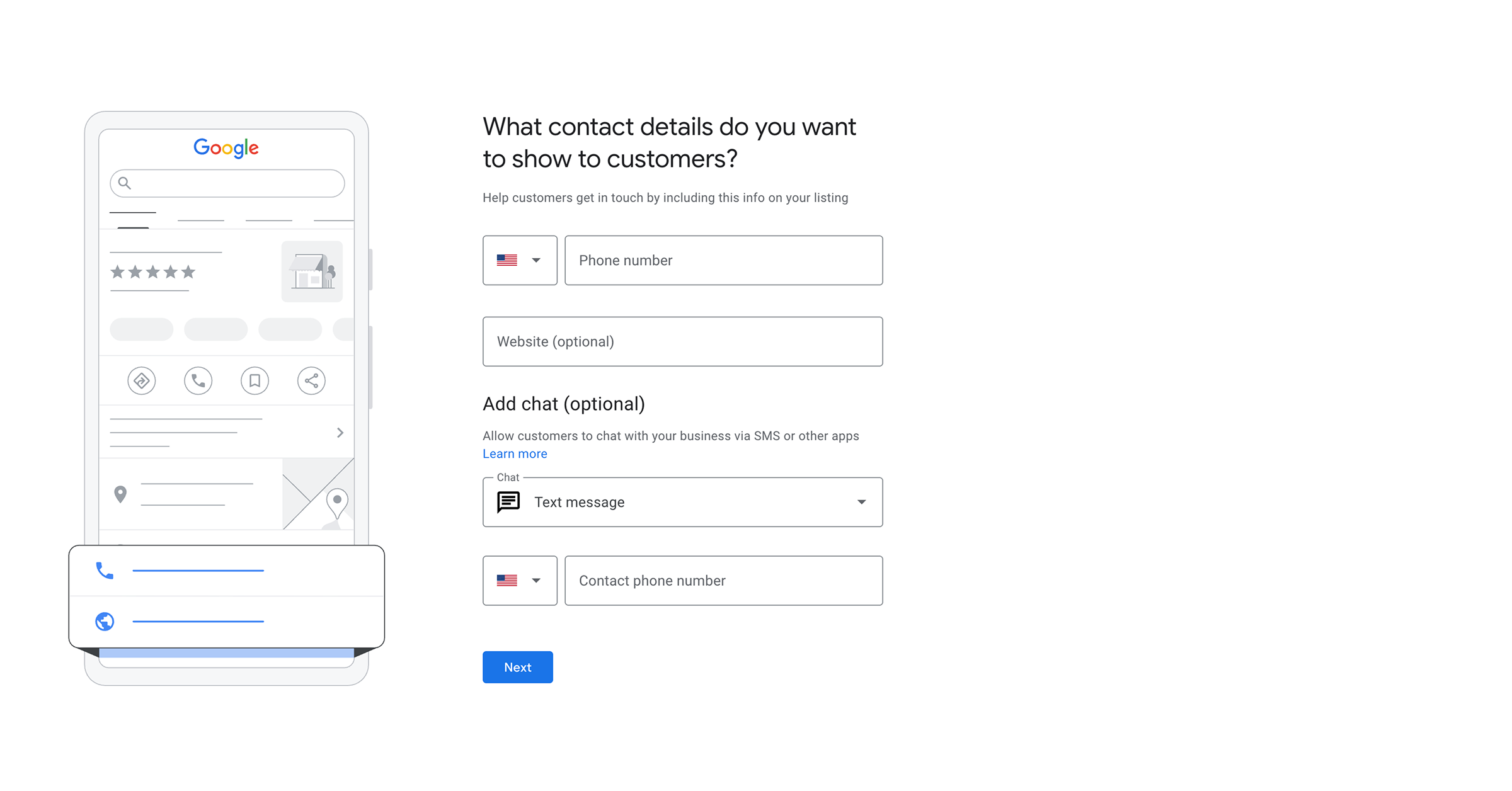
Step 3: Choose the contact details customers will see
This step is about making it easy for the right people to get in touch with you.
Google will ask what contact details you want to show publicly on your profile. At a minimum, we recommend:
-
A phone number you’re happy for customers to call
-
Your website, if you have one (this helps with trust and visibility)
These details become the main actions people see when they find you on Google — Call, Visit website, or Message.
A quick note for different types of businesses
If customers visit your location (shop, office, clinic, showroom):
Your phone number and website help people double-check they’ve found the right place before heading in.
If you’re a service-based business (trades, mobile services, home services):
These contact details are often the only way someone can reach you — so having them correct and visible really matters.
What about chat and messaging?
Google may also give you the option to add chat (via text message or other apps).
This is optional. It can be useful if you’re confident you’ll reply quickly, but it’s better to leave it off than to miss messages and create a poor experience.
The goal here isn’t to turn everything on — it’s to show clear, reliable ways for customers to contact you.
Once this step is done, your profile starts to look and feel like a real, trustworthy business — not just a listing.
Step 4: Verify your business
This is Google’s way of confirming that your business is real and tied to a real location.
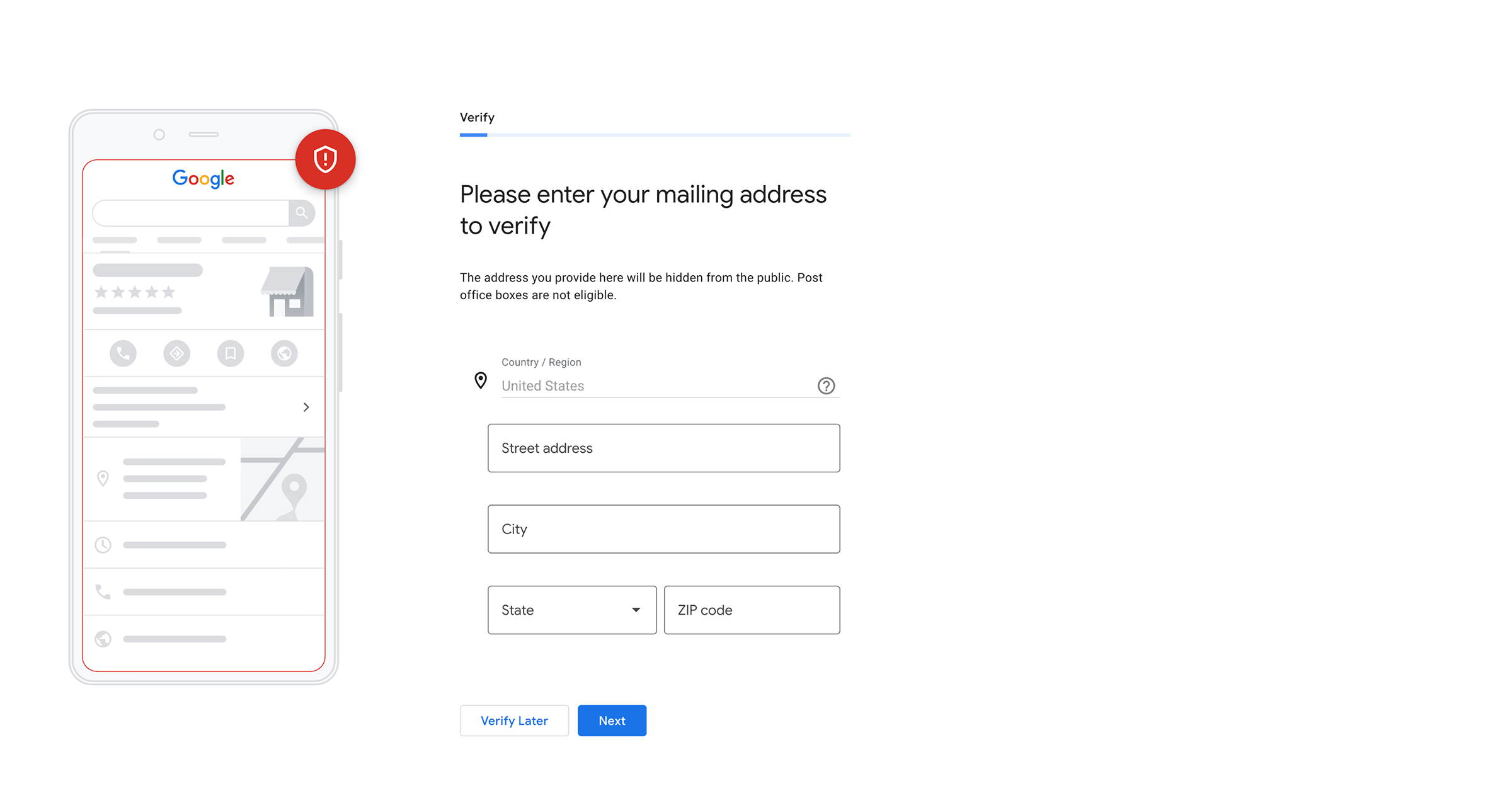
You’ll be asked to enter a physical mailing address so Google can verify the business. A couple of important things to know upfront:
-
This address is not shown publicly if you’ve chosen not to display a location
-
It’s used only for verification purposes
-
PO Boxes aren’t allowed — it needs to be a real physical address
For service-based or home-based businesses
If you run your business from home or don’t want your address visible on Google, that’s completely fine.
You can still use your home or office address here to verify the business — Google keeps it private and your profile will show your service area instead.
This is very common for trades, mobile services, and home-based businesses.
How verification usually works
Depending on the business and location, Google may verify you via:
-
A postcard sent to your address
-
Phone or SMS
-
Email
-
Or instant verification (in some cases)
Google will guide you through the exact method once you continue.
This step can feel a bit official, but it’s simply Google’s way of protecting the platform and making sure customers can trust what they’re seeing.
Once you’re verified, your profile can start showing properly on Google Search and Maps — and you’ll be able to fully manage and optimise it.
Step 5: Fill in the basics that build trust
There are definitely more advanced things you can do with a Google Business Profile (posts, products, services structure, review strategy, SEO tweaks, and so on).
But for now, this guide is about the basics — the handful of things that make your profile look legitimate and trustworthy at a glance.
If you only do the sections below, you’ll already be ahead of most businesses.
Business description (keep it simple)
Write a short, plain-English summary of what you do, where you operate, and who you help.
A good structure:
-
What you do
-
Who you do it for
-
Where you do it
-
One line on what makes you a safe choice (experience, tidy work, fast response, clear communication — whatever is true)
Quick example:
We help homeowners across with — from to . We’re known for turning up when we say we will, doing tidy work, and keeping communication simple.
No buzzwords. Just sound like a real human.
Hours (accuracy beats “perfect”)
Set your real hours and keep them updated.
It might seem small, but it’s a big trust signal. If your hours are wrong, people start to question the rest of the profile. There’s nothing worse than driving halfway across town to a business that Google says is open… only to find it closed.
Services (help people self-qualify)
List the main jobs you actually want to be contacted for.
This helps customers quickly work out if you’re the right fit, and it also helps Google understand what searches you should appear in.
Tip: Start with your top 5–10 most common services. You can always add more later.
Photos (real beats perfect)
Photos are one of the strongest trust signals on your profile.
You don’t need professional photos (yet). Just add a handful of real photos that answer: “What am I dealing with here?”
Great starter photos:
-
your logo (if you have one)
-
you or your team (even one is fine)
-
your work (before/after or action shots)
-
your vehicle / signage (if relevant)
-
your workspace or shopfront (if customers visit you)
If you can get professional photos at some point, they’re genuinely worth it — they’re one of the quickest ways to lift how trusted your business looks on Google. But to get started, a handful of real, clear photos from your phone is more than enough.
Contact buttons (make it easy to take the next step)
Double-check your key actions work:
-
the call button rings the right number
-
your website link is correct
-
directions make sense (if you show an address)
If someone is ready to choose you, this is where you win or lose the enquiry.
Reviews (don’t overthink this at the start)
If your profile is new, it’s completely normal to have no reviews to begin with.
At this stage, the goal isn’t volume — it’s simply to get a few real reviews so your profile doesn’t look empty.
A simple way to start:
-
Ask a handful of recent, happy customers
-
Keep it casual and personal
-
Don’t force it or overdo it
Even a small number of genuine reviews helps people feel more confident that your business is real and active.
There are more advanced ways to approach reviews once the basics are in place, but for now, just focus on getting your profile live, looking legit, and starting with a few honest reviews. You can always build from there.
What “good” looks like at this stage
A strong profile (at the basics level):
-
is complete and accurate
-
uses real photos
-
makes it obvious what you do and how to contact you
-
feels intentional
You don’t need perfection — you just want to look legit and easy to trust at a glance.
Common mistakes to avoid
A few things that trip people up early on:
-
Using a business name customers don’t recognise
-
Choosing the wrong category
-
Leaving key sections blank
-
Forgetting to verify the profile
None of these are disasters — they’re just easier to get right from the start.
What not to worry about yet
At this stage, you don’t need to:
-
Post regularly
-
Stress about advanced optimisation
-
Overthink reviews
Right now the goal is simple:
Exist on Google and look legitimate.
You can build from there.
Quick checklist
If you want the simple version, here it is:
-
Profile created using Google’s official setup
-
Correct primary category chosen
-
Address/service area set correctly
-
Phone number + website added
-
Verified
-
Hours set
-
Services added
-
A handful of real photos uploaded
Final thought
Getting your Google Business Profile set up properly is one of the simplest ways to make it easier for people to find and trust your business.
It’s not hard — it’s just a bit fiddly, and worth doing properly from day one.
If you’ve set your profile up and want a second set of eyes on it, we’re happy to take a look and share a few practical ways to build more trust.
Request a short, personalised Google profile review by filling out the form below.
Hope this helps,
betterbunch

Get a free reputation audit
Schedule a 1:1 call today and discover how to win on trust.
Articles you might like

Why your Google photos matter more than your logo ever will
Most small business owners don’t think of themselves as visual brands. They’re focused on doing good work. Showing up on time. Getting the job done properly. Photography usually sits somewhere near ...
Read
.png)
Three things that build trust (and make customers come back)
Doing the basics properly Most small business owners don’t need more ideas.
Read.png?width=768&height=591&name=TeamBrainstorm_Blue%20(1).png)